8 Best PDF Batch Printer Tools for Windows in 2026
- Compare 8 tools that print PDFs without opening each file, with prices checked in November 2026
- Find out why right-click Print in File Explorer vanishes past 15 files and why selected files can go missing
- Pick by how your files arrive: email attachments, monthly folders or a one-off stack
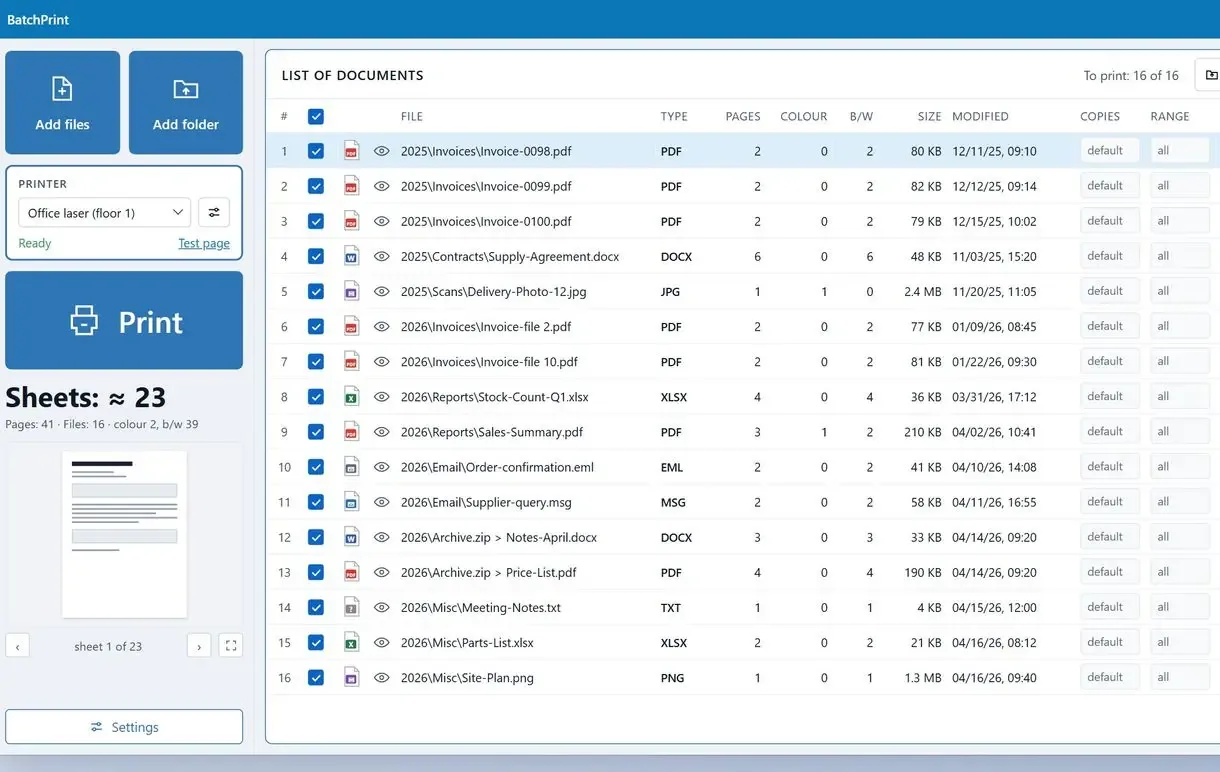
A pdf batch printer sends PDFs to the printer in one run, saving you from opening and printing thirty files by hand. People reporting batch-printing problems describe files that never reach the printer. In one office, eight PDFs went to print and five came out, with no error message or pattern. This ranking puts knowing which files printed ahead of price.
Download for Windows Buy license
In this guide
- Batch Print Software leads for mixed folders, email attachments and a report of what printed
- Where right-click Print in File Explorer stops
- Listed prices compared, from $0 to $239.88 a year
- Which tool fits your office
PDF batch printer tools compared at a glance
| Tool | Best for | What goes in the queue | Settings per file | Listed price (Nov 12, 2026) |
|---|---|---|---|---|
| Batch Print Software | Mixed folders and email attachments, with proof of what printed | 50+ file types, from PDF and JPG to Word files and saved emails | Copies, duplex and page range for each file | Free trial; price on the product page |
| Print Conductor | High-volume offices that want cover pages | 90+ formats by vendor count, RAR/ZIP/7Z archives | Paper source and color per file (vendor testimonials) | $99 per user at 5+ licenses; trial version |
| Total PDF Printer | PDF folders on a one-time license | PDF folders | Tray and duplex control, separator pages | From $49.90 one-time; 30-day free trial |
| Foxit PDF Editor | Teams already editing in Foxit | PDFs and PDF portfolio attachments | Copies and page range per file; duplex and reverse order for selected files | $129.99 per user per year; perpetual v14 $209.99 |
| PDFgear | Small PDF stacks at zero cost | PDFs added one by one | One set for the whole batch | Free (vendor) |
| WPS Office | Offices already on the WPS suite | Whole folders of PDFs | Per-file settings and saved templates | Free within WPS Office |
| Adobe Acrobat | Teams already paying for Acrobat Pro | PDFs added by an Action | Set inside the Action | Standard $179.88/yr, Pro $239.88/yr prepaid |
| UPDF | Free batch printing inside a low-cost editor | PDFs | Not stated on the vendor page | Batch print free; plans $35.99/yr or $55.99 one-time |
How we picked these tools
Reliability came first: can the program account for every file and take a folder as it is? Settings per file and price came after that.
Batch-printing threads describe the same failure. You select PDFs and the printer runs. Only later does someone notice missing files, and no error ever showed.
- Every file accounted for: a list or report showing what printed and what did not
- Folder control: whole folders with optional subfolders and a way to exclude unwanted files
- Settings per file: copies, duplex and page range without separate runs
- File types in one queue: PDFs alone or mixed with Word files and email
- Listed price: one-time, subscription or free, as shown by the vendor on November 12, 2026
We make Batch Print Software, ranked first, and know it from the code and release builds. For the other seven, we read vendor guides, price pages and user reports on November 12, 2026. Prices can change. We did not buy their licenses or run timed tests; the reviews are judgments from those sources, and the ranking makes no claim about speed.
The 8 best tools to batch print PDF files on Windows, reviewed
1. Batch Print Software - best for mixed folders, email attachments and a report of what printed
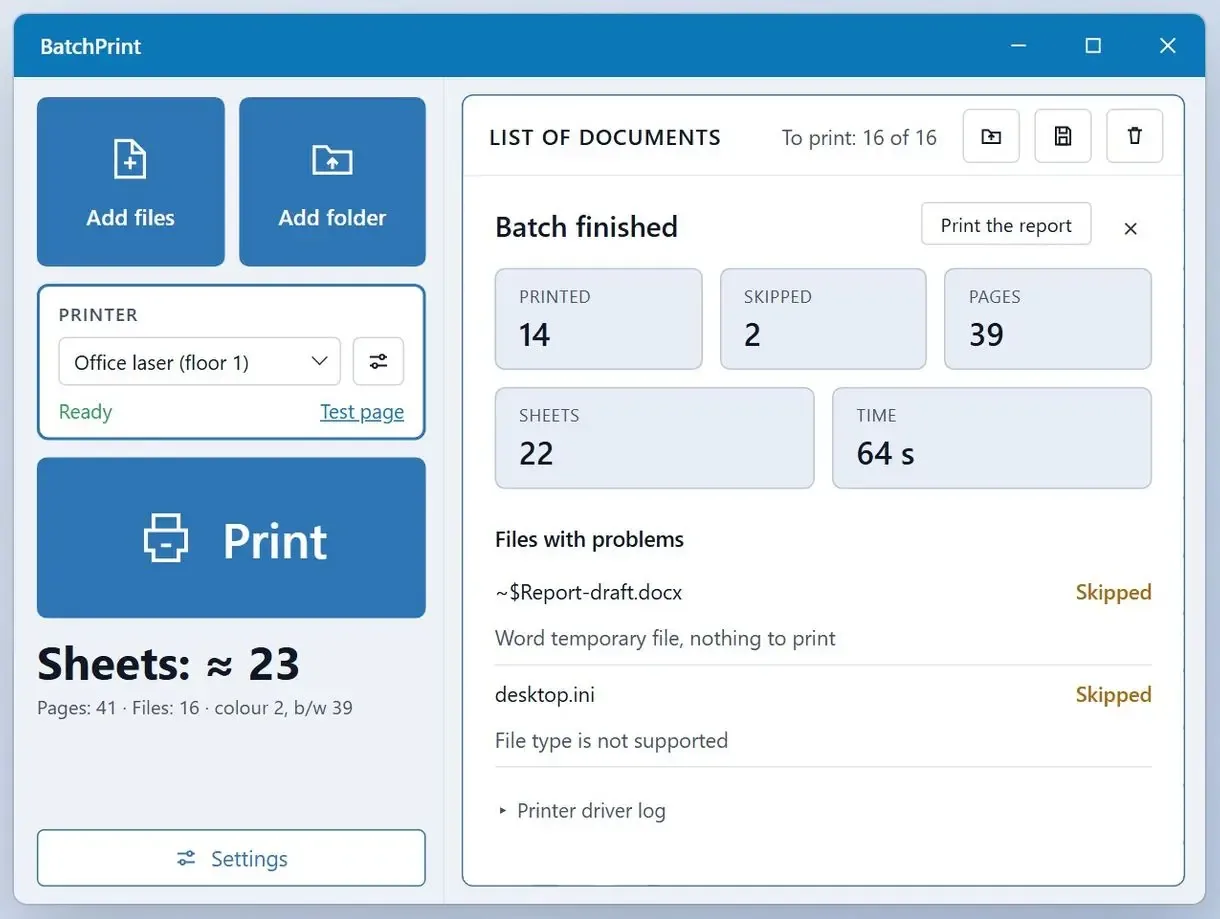
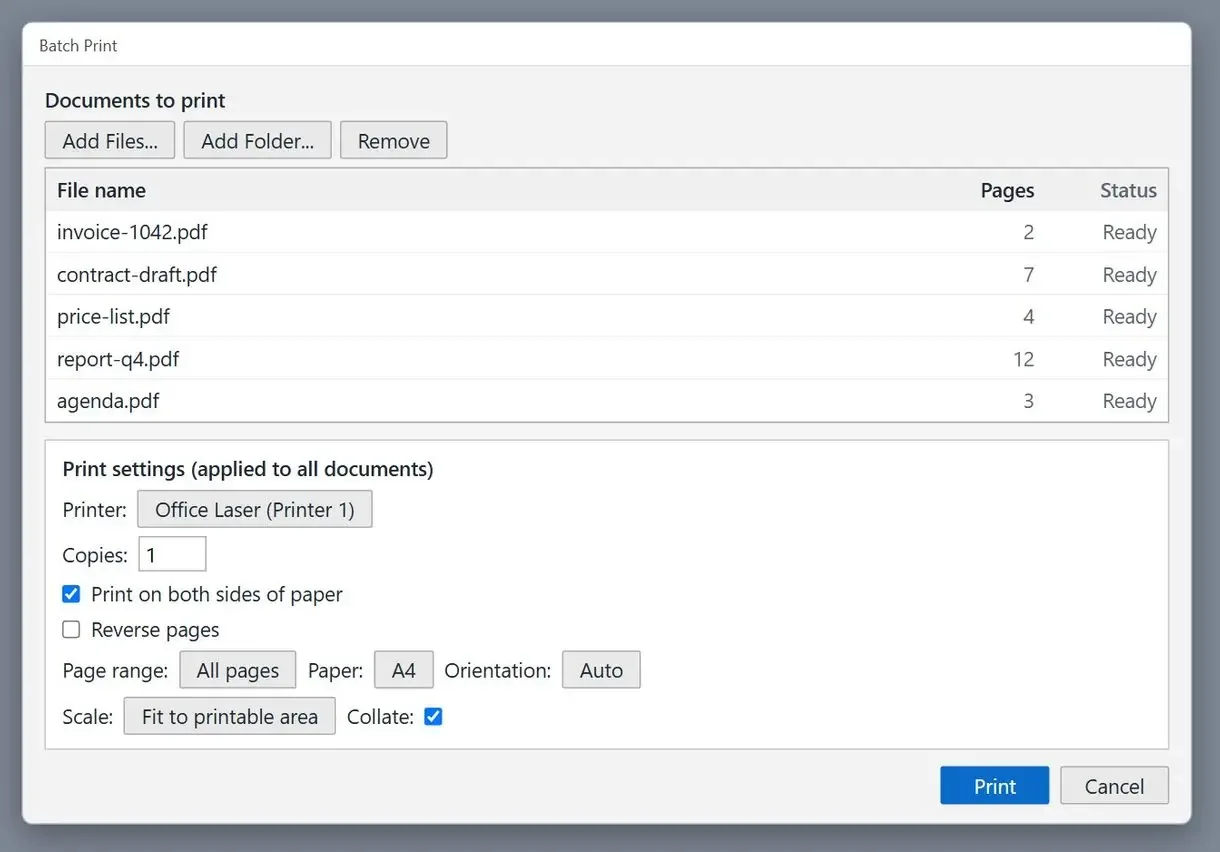
It gives you a Windows print queue for files and folders, including files inside ZIP archives. Saved .eml and .msg messages print without a mail client, with each attachment listed as a separate row.
PDFs render through the program's own engine, built on the open-source PDFium library, without a PDF reader between the queue and printer. You can also set pages per sheet for each file. The interface has 20 languages, and the program can stay in the system tray between batches.
Pros:
- Prints saved emails and attachments alongside PDFs
- Adds folders with optional subfolders and a file-name mask
- Sets copies, duplex and page range for each file
- Reports each file as printed or skipped, with a reason for each skip
- Counts the sheets needed before printing
Cons:
- Few independent reviews exist yet; use the free trial to judge it
- Settings per file take a few minutes to learn for a one-off job of five PDFs
Run your own folder through Batch Print Software with the free trial before choosing. Check the report after your first batch.
Download for Windows Buy license
2. Print Conductor - best for high-volume offices that want cover pages
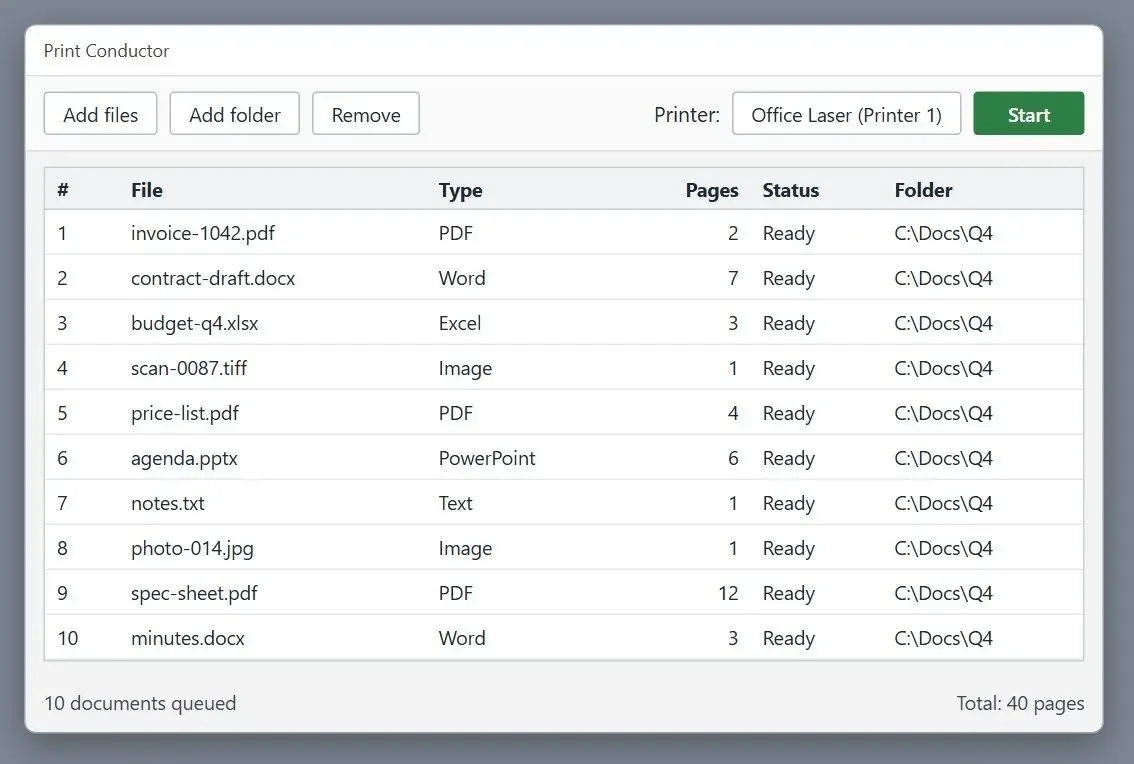
Print Conductor from fCoder is a long-standing choice for offices printing thousands of documents a month. The vendor lists 90+ formats, 15 interface languages, cover and separator pages, print reports, and printing from folders and RAR, ZIP or 7Z archives. Testimonials on its site praise changing page range, paper source and color for each file; one customer reports about 10,000 documents a month. Treat those vendor-hosted quotes as marketing.
Pros:
- Supports 90+ formats by the vendor's count
- Adds cover and separator pages
- Prints from folders and RAR, ZIP or 7Z archives
- Offers volume discounts
Cons:
- Had no single-license price on its main page when checked
- Has more settings than a small weekly job needs
- Gets most of its praise from vendor-hosted testimonials
Our take: The deepest feature list among the paid programs here. A one-person office printing one folder a week will use little of it.
3. Total PDF Printer (CoolUtils) - best one-time license for PDF folders
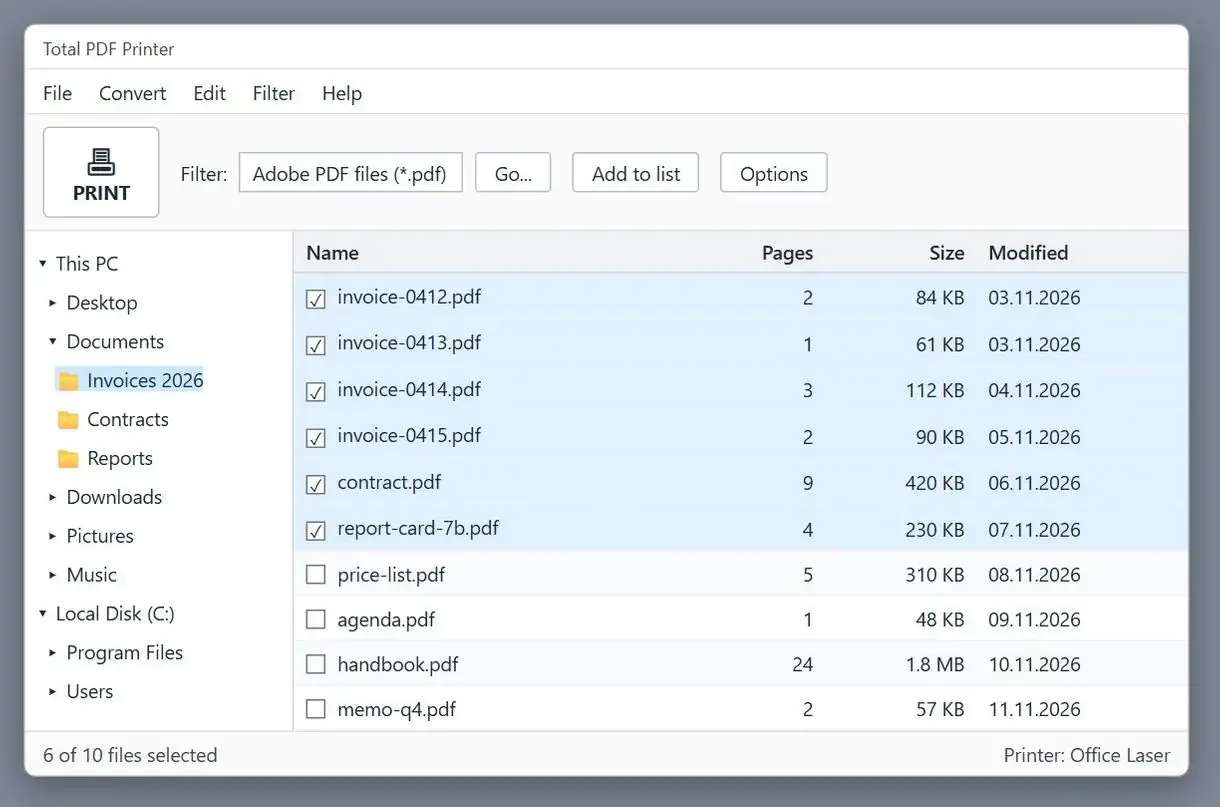
CoolUtils pitches Total PDF Printer at people running into File Explorer's limits. Its page says Print disappears when you select more than 15 files, the order is not guaranteed, and each file briefly opens in the default PDF program. Total PDF Printer runs on Windows 7 through 11.
Pros:
- Starts at $49.90 once, with no subscription
- Offers a 30-day free trial, enough to test a monthly job twice
- Adds separator pages and rotates pages automatically
- Sets paper tray and duplex for the run
Cons:
- Focuses on PDF; test the trial with other file types
- Lists no Mac version on the vendor page
4. Foxit PDF Editor - best if you already edit PDFs in Foxit
Foxit's help page tells you to open the editor and choose File > Batch print. You can also select PDFs in File Explorer and choose Batch Print in Foxit PDF Editor from the right-click menu. The page covers copies, two-sided printing and reverse page order, plus PDF portfolio attachments including PDFs, images and Office documents. In an Adobe forum thread, an admin reported that the free Foxit reader printed a selection Adobe's reader kept dropping.
Monthly plans start at $10.99. A perpetual Foxit PDF Editor 14 license is also available.
Pros:
- Offers batch printing from the File menu and File Explorer's right-click menu
- Sets copies and page range for each file
- Prints files attached inside a PDF portfolio
- Offers a perpetual license alongside subscriptions
Cons:
- Accepts only PDF files in the batch list, according to its help page
- Charges for a full editor even if you only need batch printing
Our take: You get every PDF tool in one window, but it is an expensive way to buy one batch button.
5. PDFgear - best for small PDF stacks at zero cost
PDFgear's maker calls the editor completely free. For a quick stack of a dozen PDFs, open Print > Batch Print, click Add PDF Files and choose your printer. You can set copies, page range, two-sided printing, paper size, orientation and whether annotations print. The guide says those settings apply to all added files, so a mix of duplex and single-sided files needs two runs. Product Hunt reviews praise the editor but say little about batch printing.
Pros:
- Costs nothing, according to the vendor
- Sets copies, page range and two-sided printing for the batch
- Lets you choose whether annotations print
Cons:
- Applies the same settings to every file
- Shows only Add PDF Files in its guide, with no whole-folder step
- Handles PDF files only
Our take: For a weekly stack of 20 invoices using the same settings, it could probably replace a paid program.
6. WPS Office - best if your office already runs the WPS suite
The WPS Office feature page promises folder imports in one click with options per file, plus saved settings templates and a layout preview. Batch PDF printing is free within the suite, and the page lists Windows and macOS. We excluded its reviews because they carry first names only.
Pros:
- Imports a whole folder of PDFs in one step
- Sets options per file and saves templates
- Previews the layout before printing
- Costs nothing within the WPS suite
Cons:
- Requires a full office suite you may not want
- Covers only PDF files on its feature page
Our take: The layout preview stood out. Few programs here show a page before it prints.
7. Adobe Acrobat - best for teams already paying for Acrobat Pro
In Acrobat Pro, you can batch print through an Action that adds files or folders and prints them. A complaint dating to Acrobat X concerns Add folders, which pulls in everything it can open from subfolders without an extension filter. Users also report random missing files when selecting PDFs in File Explorer and choosing Print, which passes each file to Reader or Acrobat.
On November 12, 2026, Standard cost $14.99 a month on an annual plan and Pro cost $19.99 a month.
Pros:
- Costs nothing extra if you already pay for it
- Processes folders through an Action
- Keeps editing, signing and printing in one program
Cons:
- Includes every supported file in subfolders, without an extension filter
- Loses files at random when printing through File Explorer, according to user reports
- Costs the most of any program listed here
Our take: If you already pay for Pro, try an Action before buying another program. Count the output after every run.
8. UPDF - best for free batch printing inside a low-cost editor
UPDF includes batch printing in the free part of its PDF editor and charges for other features. Its own roundup of PDF batch printer tools calls UPDF the free and best choice. Treat that vendor ranking as an ad.
Pros:
- Prints PDF batches at no cost
- Has the cheapest annual plan listed here, at $35.99
- Offers a one-time license for paid features
Cons:
- Ranks itself first in its comparison
- Gives little detail about settings per file
- Handles PDF files only
Our take: Try your own files before relying on its roundup. It suits free batch printing now, with paid editing plans there if you need them later.
Can Windows print a batch of PDFs without extra software?
Partly. Select up to 15 PDFs in File Explorer, right-click and choose Print. Above 15 files, the command disappears; each file prints with default settings.
In Windows 11, select your files, right-click, choose Show more options to open the classic menu and click Print. Windows opens the default PDF program for each file and sends it to the default printer using that printer's settings. Each document becomes a separate print-spooler job, as described in Microsoft's overview of spooler components.
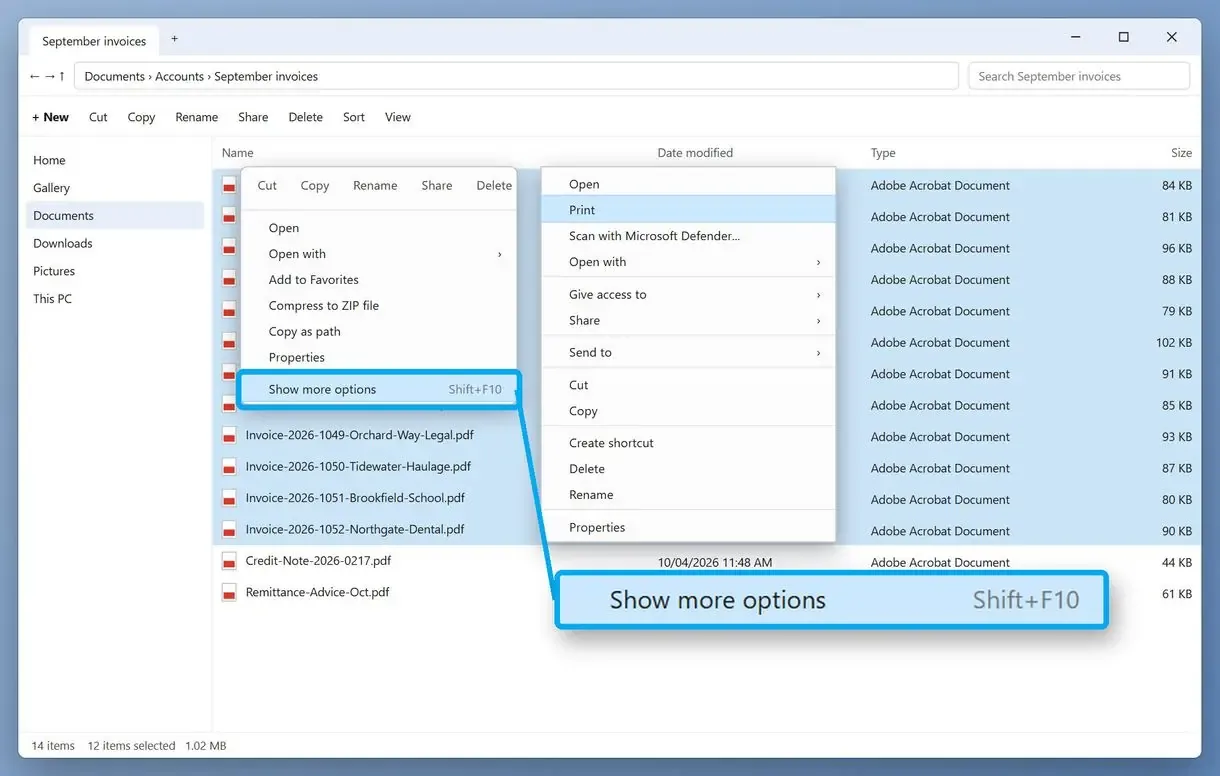
Microsoft's support article on missing context menu items says Print hides by design above 15 selected items. An answer on Microsoft's Q&A site suggests groups of 15. Click the first file, then Shift-click the fifteenth. One Windows 10 user saw Open but no Print for selected PDFs, while Word files printed fine. A Windows 11 user reported having to open every document before printing, whatever its format. For some users, dragging files onto the printer queue produced an error or did nothing.
Print order is not guaranteed. Duplex and tray follow the printer defaults, and you get no record of which files printed. Windows is enough for 12 PDFs with the same settings. For 30 attachments received before lunch, you need two rounds and a manual count.
Why do only some of the selected PDFs print?
Right-click Print passes files to a PDF reader one at a time, without recording failed hand-offs. A program that renders PDFs itself and logs each file lets you see what happened.
Foxit and PDFgear's vendor docs describe a clean workflow. User threads report problems with File Explorer printing through Reader or Acrobat. In a 2024 report, staff selecting 2 to 50 PDFs saw a random 3, 14 or 22 reach the copier. About 15 users in another office hit the same problem within one day, without an error. A school could drag 150 report cards into its copier queue on Windows 7, but only the first 2 printed on a new Windows 10 desktop.
Each file opens in a reader, passes a job to the Windows queue (the spooling step) and closes before the next file. Failed steps go unlogged. Scripted Reader printing has problems too: one user reported that a 20-page PDF printed correctly through page 18, with blank pages afterwards.
Right-click Print through a PDF reader
- Each file opens in Reader or Acrobat in turn
- Files can drop out of the batch with no error
- Order and settings follow the printer defaults
A queue with its own PDF engine
- PDFs render inside the queue without a reader
- Files print in the order of the list
- A report marks each file as printed or skipped
Use the skip reasons in our first pick's report to reprint the affected file.
Which settings can you change per file in a batch?
Copies and duplex printing per file are the usual settings to change, followed by page range and pages per sheet. File Explorer and the free PDF programs apply the same settings to the whole batch.
A two-page cover letter needs one copy, a contract three copies, and a 40-page report double-sided printing. With our first pick, set each row's copies, duplex mode and page range for one run. WPS lists options per file and saved templates. Print Conductor's testimonials mention separate paper sources per file. Foxit sets copies and page range per file, with duplex applied to several documents at once. PDFgear's guide configures everything once for all added files.
Pages per sheet (N-up) saves paper on drafts and long reports. To spread a picture over multiple pages, follow the guide to print one large image across several sheets.
With double-sided printing, an odd page count can put the next file's first page on the back of the previous file's last sheet. Before a 200-file run, test two 3-page PDFs and check that the second starts on a fresh sheet.
How do you print a folder with subfolders, and only the PDFs in it?
Add the top folder to a queue that reads subfolders and filters by name. Acrobat's Add folders includes every supported file it finds, without a filter.
Our first pick lets you add the top folder, leave subfolders switched on and enter *.pdf as the file-name mask to exclude other files. PDFgear's guide only shows adding files by hand.
Can one queue print PDFs together with Word files and emails?
Yes. Our first pick and Print Conductor accept multiple formats in one queue. PDF editors such as Foxit, PDFgear and Acrobat print PDFs only.
Your client folder might contain JPG or HEIC scans, a Word contract and an Outlook email thread. One user on Microsoft's Q&A reported receiving more than 30 PDF attachments in one email, without time to open and print them individually.
Our first pick also accepts WebP and plain text files. HTML pages print as well, and so do CSV and XPS files and Office documents through PowerPoint. Print Conductor lists 90+ formats by its own count. For Word-only batches, you can batch print Word documents with Word alone.
How much does PDF batch printing software cost?
Prices ranged from $0 to $239.88 a year on November 12, 2026. PDFgear costs nothing; Total PDF Printer starts at $49.90 once. Acrobat Pro tops the list at $239.88 a year prepaid.
- Total PDF Printer: from $49.90, one-time, 30-day free trial
- Print Conductor: $99 per user at 5+ licenses, $79 at 20+, $59 at 50+, corporate from $2,450
- Foxit PDF Editor: $129.99 per user per year, Editor+ $159.99, perpetual v14 $209.99, 14-day free trial
- Adobe Acrobat: Standard $179.88 a year prepaid, Pro $239.88
- UPDF paid plans: $35.99 a year or $55.99 one-time; batch printing is free
Three years of Foxit Editor subscriptions cost $389.97, against $209.99 for the perpetual license. Acrobat Standard reaches $539.64. Our first pick lists its price on the product page.
Which PDF batch printer fits your office?
Choose by how your files arrive. Our first pick suits email attachments and mixed folders; for PDF-only stacks, try a PDF editor you already own.
The front desk with 30 attachments a day. Save the messages and add them to the print queue.
The accounts team with a monthly folder of invoices. Use the *.pdf mask for hundreds of PDFs in client subfolders. Print Conductor can add a separator page between clients' stacks.
The school office printing report cards. For 150 files, one per student, choose a program that lists every file after printing. Total PDF Printer fits if your files are PDFs and a one-time license matters more than the report.
The team that already pays for Foxit or Acrobat. Use the batch command in the program's menu for PDF-only stacks, rather than File Explorer's right-click command. Count the output.
The one-off stack. For under 15 PDFs with the same settings, use File Explorer. This step-by-step guide for a stack of PDFs on Windows 11 and Mac covers the steps. PDFgear suits a few dozen PDFs on zero budget.
Also considered
Five more programs missed the list for the reasons below, including file handling and price.
- PDF-XChange: its support team directs batch users to File Explorer or the command line. The menu has no print settings of its own.
- VeryPDF PDF Batch Print GUI prints PDFs in your chosen order, but we could not confirm its price on the loaded product page.
- SumatraPDF prints PDF lists only through its -print-to command line, with no window for building or checking a queue.
- Xodo reuses the last printer dialog for the batch, without settings per file.
- Batch Print PDF for Mac runs only on macOS and costs $1.99. It is the closest match for Mac users. We found no browser-based batch printer worth listing.
Sources
- ISO 32000-2:2020, the current PDF specification read by every program listed here
- Microsoft Learn: Print Spooler API, on how Windows queues and manages print jobs
FAQ
Is there any free software for batch printing PDF files?
PDFgear is free according to its maker. WPS Office includes free batch PDF printing. For mixed file types, our first pick and Print Conductor offer trials.
Is there a way to batch print PDF files?
Use right-click Print in File Explorer for up to 15 PDFs. For larger stacks, use a PDF editor's batch command or a queue such as our first pick.
How can I print 100 PDF files at once?
File Explorer needs 7 rounds of 15. With our first pick, add the folder, check the sheet count, print and check the report for all 100 files.
How do I print all documents in a folder in Windows 11?
Select up to 15 files in the folder, right-click and choose Show more options > Print. For bigger or mixed folders, use a queue with subfolder support and a name filter.
How do I give one print command for multiple PDF files?
Select them in File Explorer and choose Print to use the printer defaults. For settings per file, add the PDFs to a batch queue and press Print once.
Why does printing a whole PDF portfolio send only the first file?
An October 2025 Acrobat update caused jobs to appear sent while only the first file printed. Adobe said in its forum that version 20813 fixed it. Update Acrobat before retrying.
Got a whole stack waiting? Drop the folder into one queue and press Start.