What Is Batch Printing?
Quick answer:
- Many mixed file types in one run with a report: Batch Print Software sends the queue to the printer without opening a file
- A handful of same-type files: highlight them in Explorer and use Print from the context menu
- Label or lot-number printing: the term means a different job in those fields, explained below
On a Windows PC, batch printing means sending a group of files to the printer as one run. Search results also use the term for label printers and lot codes on packaging. This guide covers office files and where File Explorer stops being enough.
In this guide
- A print queue for many mixed files: how a batch run works
- A handful of same-type files: the context-menu Print in File Explorer and its limit
- When the built-in route stops being enough
- Programs side by side, with listed prices
What you need
- Batch Print Software on a Windows 10 or 11 PC
- The files to print, in one folder or several (ZIP archives work too)
- A printer already set up in Windows
- About 5 minutes for the first batch
How does batch printing on Windows 11 work?
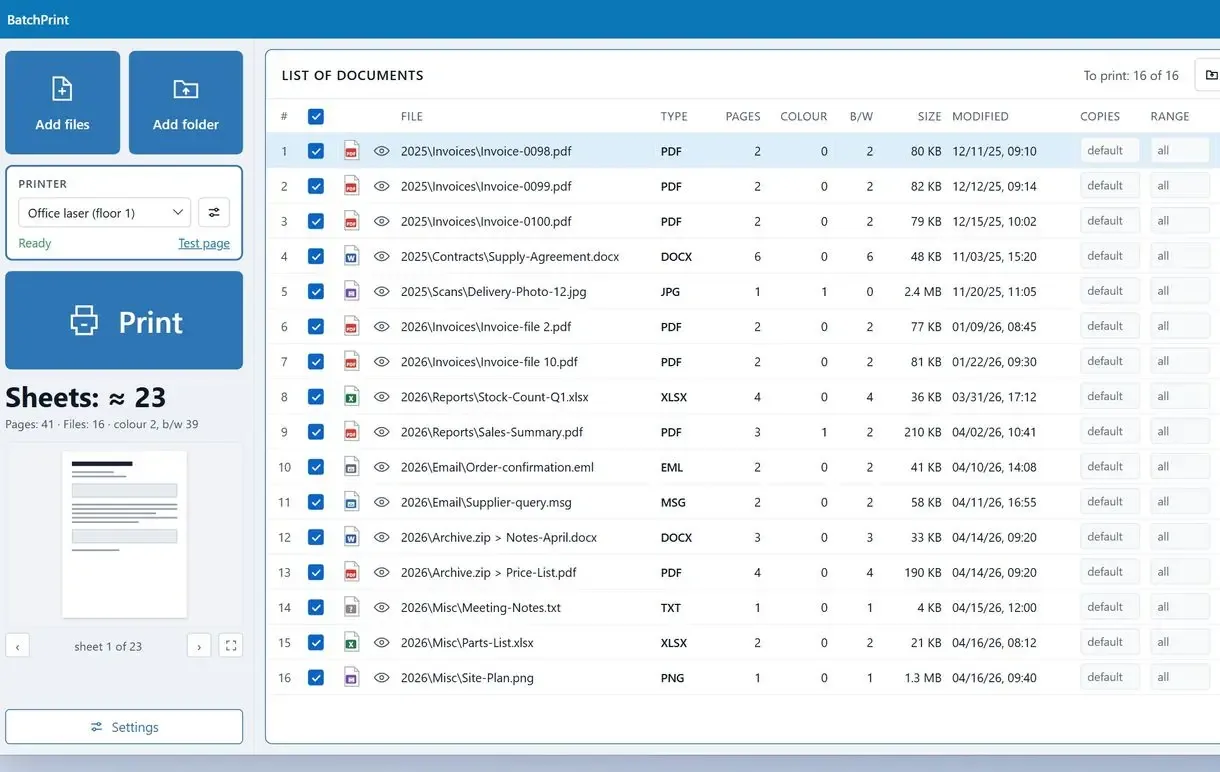
Batch printing works from a queue of files and folders: it applies one set of print settings to the list and sends the files to the printer one after another. Our program handles 50 file extensions in one list, from PDF and DOCX to HEIC photos and saved emails.
Drop files, folders or ZIP archives into the queue to send a whole stack to the printer in one go. Each appears as a separate entry. Pick the printer and batch settings, print the batch and watch the queue empty in list order.
In practice you batch print files without opening them. PDF pages go through the program's own PDF engine, so no reader window opens. DOCX and XLSX files print without Microsoft Office, and saved .eml or .msg messages print without Outlook.
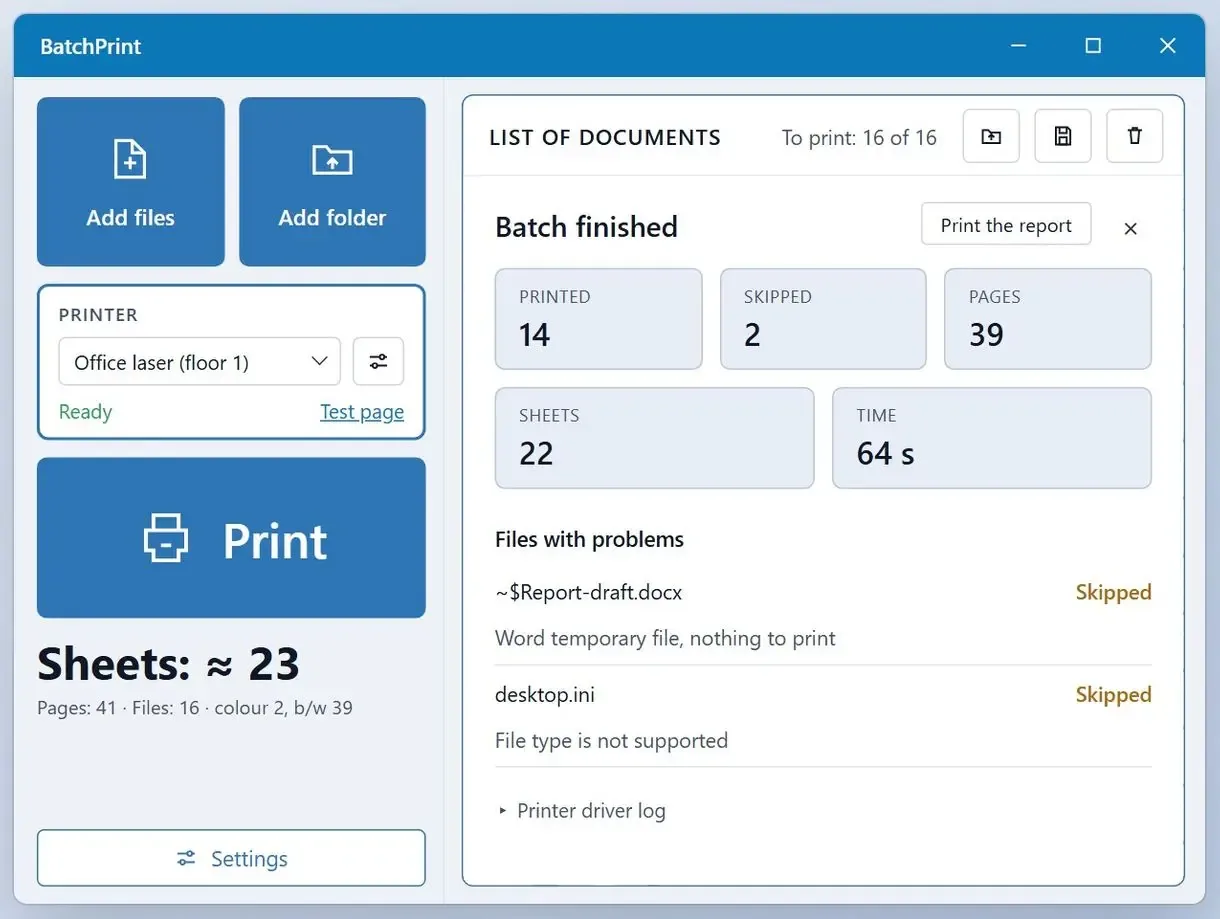
When the run ends, a print report lists what printed, what was skipped and why, with page and sheet totals. The sheet counter in the main window shows how much paper the batch will take before you load the tray.
Right-click Print in File Explorer
- Each file opens briefly in its default app
- One file type per selection
- Printer defaults for every file
- No report at the end
The program's queue
- Mixed file types in one list
- Batch settings plus overrides per file
- Printed and skipped files with reasons
- Sheet count before you print
What is batch printing, and how is it different from right-click Print in File Explorer?
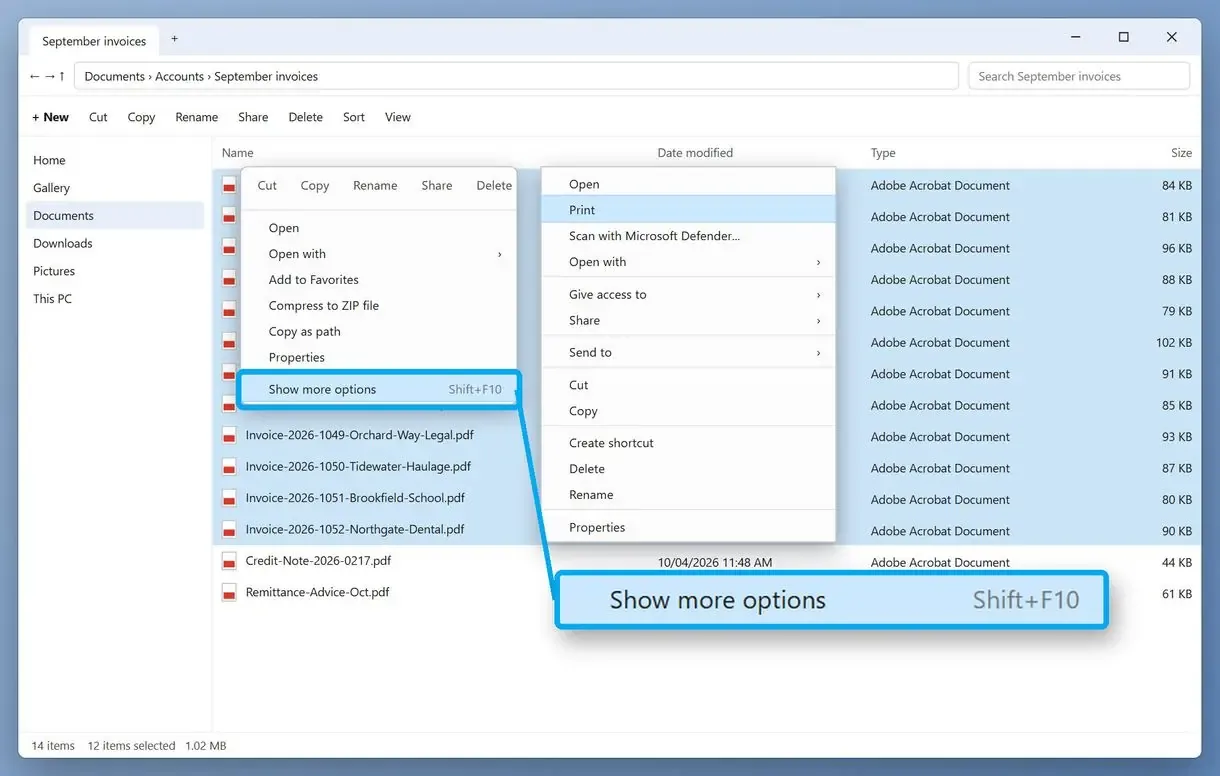
File Explorer prints a small selection through the right-click Print command, which hands each file in turn to the app that opens it. By vendor and forum accounts, that Print item vanishes past 15 selected items or with a mix of file types, and nothing controls order or per-file settings.
Windows 11 keeps that Print item one level down, behind Show more options.
Support answers often say Explorer prints selected files "without opening them". In practice Windows starts the program registered for each type, which prints the file and closes. With Word documents, Word flashes open and shut. With a mixed stack, the menu entry may not appear: PCWorld points out that Print stays hidden when the selected files are of different types, even if each type is printable.
What is a print job, and what is a batch printer?
A print job is one document sent to the printer, with its own pages and settings, waiting its turn in the Windows print queue. A batch is a group of such documents started by a single action.
The idea comes from computing: batch processing means running a software job in an automated, unattended way. Batch printing applies that to paper: a folder prints while you work, and in an office a batch printer is not special hardware, just an ordinary printer receiving a group of documents in one run.
What does batch printing mean for labels and lot numbers?
In some industries it names a different job. Label software uses the phrase for its own kind of run. Packaging lines and mail systems that print letters on a server use it too.
Loftware's label documentation defines a batch as a set of labels printed within a single print job. In manufacturing, Videojet's glossary treats the batch number as the code that traces identical products from one production lot. Oracle's correspondence guide uses batch printing for business letters generated and printed on a server.
If you print shipping labels on a thermal printer, your label software already has its own batch mode. This page covers the office version, where documents on your computer go to an ordinary printer.
Can you keep print settings per file, such as copies, duplex and page range?
With right-click Print, no. Every file goes out with the printer's default settings. A batch tool sets copies, page range, duplex, scale, orientation and pages per sheet once for the batch, then lets you change them for a single file.
A 40-page contract can need two double-sided copies while a dozen one-page cover letters use one copy. In our app, set the batch to one copy, then raise the contract alone to two copies with duplex on. Collation keeps each copy's pages together.
Pages per sheet (N-up) puts two or four pages on one sheet, with an optional border. It is the reverse of the task where you print one image across several sheets.
Windows 11 does not merge selected files into one combined document when it prints them, and batch printing keeps them separate too. Combining everything into one PDF first is a common workaround, but then every page gets the same settings.
Word files go into the same queue as PDFs; there is a separate walkthrough on how to batch print Word documents.
Why do only some selected files print, or print out of order?
Right-click Print has no queue or report of its own, so files can come out in random order and some may never print. Users describe selections of 2 to 50 PDFs where only a random few reached the printer, or only the first two of the list.
One school office printing 150 report cards ran into exactly that. Nothing showed which files went through.
A batch program prints the list in the order you set and closes the run with its report. A file it cannot read shows up there with a reason instead of quietly missing from the tray.
When do you need batch printing software?
You need it once the files are mixed in type, number more than about 15, must come out in a set order, or need different settings per file. For a few same-type PDFs now and then, File Explorer does the job.
File Explorer is enough. Highlight a handful of same-type files and use Print from the context menu.
A batch program pays off. Use it for daily email attachments, end-of-term stacks of report cards, or invoice folders where Word and Excel files sit next to PDFs. It also helps when someone later asks what actually printed. Our program covers these jobs from one queue.
Skip batching altogether. Two or three files you still need to check on screen are faster to open and print from their own app.
Which programs print a whole stack of files?
Batch Print Software, Print Conductor, Batch & Print Pro and Total PDF Printer are Windows desktop programs that print a list of files without opening them. They differ in the formats they cover and in price, while File Explorer remains the built-in option at no cost.
| Option | What it prints from one list | Price as listed on 12 Nov 2026 |
|---|---|---|
| Batch Print Software | 50 file extensions, from PDF and Excel to .eml/.msg emails and ZIP | Free trial; pricing on the product page |
| File Explorer (right-click Print) | Files of one type that have a Windows print handler | Included in Windows |
| Print Conductor | Over 90 document types, per its site | $59-$99 per user in packs of 5+ licenses |
| Batch & Print Pro | PDF and Office files plus images, ZIPs too, in a chosen sequence | $79.95 Standard, $109.95 Premium |
| Total PDF Printer | PDF files | From $49.90, 30-day trial |
Prices move, so check each vendor page before buying. Print Conductor's order page listed only volume packs, so no single-license price appears here.
Sources
- Doing Better Business: how to batch print for time savings - a printer dealer's walkthrough of the 15-file Explorer selection
- Cybra: what is batch printing - the label-printing meaning of the term
FAQ
What does mass printing mean?
Mass printing usually means the same as batch printing: sending many files or copies to the printer in one run instead of one at a time. "Mass" stresses the volume.
How do I print every document in a folder in Windows 11?
Open the folder, press Ctrl+A, right-click and choose Show more options, then Print. That works for a small set of one file type; for mixed types or a large folder, drag the folder into a batch program.
How do I print several pictures at once in Windows?
Select the photos in File Explorer and use right-click Print to open the Windows photo print dialog, where you pick a layout such as full page or 4x6. A batch program also queues HEIC and WEBP photos next to PDFs.
How do I print many email attachments at the same time?
Save the attachments into one folder, add that folder to a batch program's queue and print it in one go. Our app also prints the saved .eml or .msg messages themselves, with no Outlook needed.
How do I batch print PDF files on Windows?
For a short list, select the PDFs in File Explorer and use right-click Print. For dozens of PDFs, or PDFs mixed with other files, use a print queue program. Our guide to printing a stack of PDFs on Windows 11 and Mac covers both routes.
How do I batch print in File Explorer?
Select up to 15 files of the same type, right-click and pick Print; Windows 11 puts it into the extended menu. Windows passes each file to the app that opens it, which prints and closes.
Got a whole stack waiting? Drop the folder into one queue and press Start.